Parties
Shared Event Photo Gallery — How to Create One in 30 Seconds
11 min read
Published 15 July 2026Updated 31 October 2026
TL;DR: A shared event photo gallery is one online place where every guest drops their shots via a QR code on the table. They scan and add — nothing to install, no begging people three days after the event. Works the same way for a wedding, a 30th birthday, a christening, or a company offsite — you set it up once in FotoClick and forget about it.
How do you create a shared event photo gallery? Go to fotoclick.pl, click "New event", enter a name and date, print placards with the generated QR code, and put them on the tables. Below we walk through what happens on the other side of the screen, why this beats a Messenger group, and how to prep for the night so you wake up with everything your guests managed to capture in one place.
Why a Messenger group isn't enough
Everyone knows the pattern. The party ends, someone starts a group called "Ann & Mark's wedding — photos", someone else "Sophie's 18th — pics!!!", at work someone opens a Slack thread "Q3 offsite photos". For three days, 40 photos trickle in. Then silence. A week later someone nudges: "hey, are you uploading yours?". Fifteen more land. The rest stays on people's phones forever.
The problem isn't the people. People are happy to share — just not at the moment you need them to. In the evening, at the party, nobody wants to hunt for a group chat, scroll through contacts, pick photos one by one, add captions. They want to dance.
Then there are three other pain points. Messenger compresses photos to a resolution you can't turn into a photo book. WhatsApp groups lose the order because messages and photos get mixed up. Slack deletes attachments after 90 days on free plans. And if you're gathering photos from a corporate offsite where half the guests aren't in your contacts — you've got no way to invite them.
A shared event photo gallery solves this differently. You don't ask guests to do something after. You invite them to upload during, with a single gesture, no friction.
How to collect photos from guests with a single QR code
We built FotoClick exactly for this. The idea is simple: you create an event, get a QR code, put placards on the tables. The guest scans with their phone camera, the gallery opens in the browser, they upload photos. Done — they scan and add, nothing to install.
Three things that make the difference:
Zero friction for the guest. Aunt Helen, Mark's coworker, the cousin from Manchester — everyone scans the same code. Nobody needs to understand what a link is, how the cloud works, where to register. A page opens, there's an "Add photos" button, they pick from their phone gallery, done.
Full quality, no compression. Photos land in the gallery at original resolution. You can print a photo book later, order a 40x50 wall print, post to Instagram without pixelation. Messenger won't give you that.
One account, many events. You register once. Then you build a gallery for your sister's wedding, half a year later for your daughter's 18th, a year after that for your team offsite. Same workflow, same placard designer, same logic. A wedding versus a christening isn't "a different product" for us — it's a different event under the same account.
See for yourself: a live example gallery — open it and click around, it's exactly what your guests see.
How it works — step by step
The whole setup takes less time than making coffee. Here's the sequence the organizer goes through.
Step 1 — New event
You go to fotoclick.pl, create an account (email + password), click "New event". You enter three things: name (e.g. "Katie's 30th", "Q3 Marketing Offsite", "Zoe's Christening"), date, short description. That's it. The event is live.
Step 2 — Guest PIN (optional)
If the gallery should be semi-private, you set a PIN. Only guests who know it can enter the gallery. The PIN appears on the placard together with the QR code. For a wedding or a christening it's usually enough to have the code only on the tables. For a corporate event where a placard hangs in reception, the PIN blocks random walk-ins.
Step 3 — Placards with the QR code
You open the placard designer. You pick a theme that matches the mood of the evening. You edit the text ("Drop a photo into the shared gallery", "All your shots in one place", whatever fits). You pick a layout: a single A5 placard, four per A4, or nine small ones per A4. You download the PDF. You print at home, at a copy shop, at the office — whatever's handy.
Step 4 — Set them out and forget
Placards land on the tables, by the bar, near the bathroom, at reception, by the coat check. The more touchpoints, the more photos land. You don't have to announce anything from the stage — people see the code, scan it, upload. If you want to nudge mid-party, you send a push to everyone who already entered the gallery — they get a notification on their phone without installing anything.
Step 5 — After the party
In the morning, you open the organizer panel. You see every photo in one gallery, in upload order. You can hide the ones that shouldn't be there (blurry, accidental, awkward). You download a ZIP of the whole gallery at full quality. The same source will feed the photo book, the gift for your parents, the memories folder on Google Drive.
Live Show — the bonus worth knowing about
A shared gallery doesn't have to wait until morning. You can hook a TV or a projector up to your FotoClick account and run Live Show — a slideshow that plays live from what guests just uploaded. You pick the pace (5, 6, 8, or 10 seconds per photo), the order (newest first, chronological, or random), and a welcome slide.
The effect is contagious. A guest uploads a photo, ten seconds later they see it on the screen in the room, everyone laughs, more guests want to see themselves too. The photo count in the gallery grows at a pace you'll never see in a Messenger group. More on this in our post on the wedding slideshow — but the same mechanic works for a 40th birthday, a corporate event, or a hen night.
Placard design — small thing, big difference
The way the placard looks decides how many people notice it. A few rules from watching hundreds of events:
- Short copy — max 4-5 words above the code. "Drop a photo", "Shared gallery", "Add your shot". A sentence like "We warmly invite you to contribute to our shared commemorative photographic gallery" — nobody will read that.
- Contrast against the table — a light placard on a dark tablecloth, a dark one on a light cloth. Sage and burgundy work at elegant weddings, dark works at club-style 18ths and offsites.
- At hand height — in the middle of the table, not by the plate. The guest scans from a seated position without standing up.
- Two placards on a long table — if the table seats 10-12, put two out so everyone has one in eye-line.
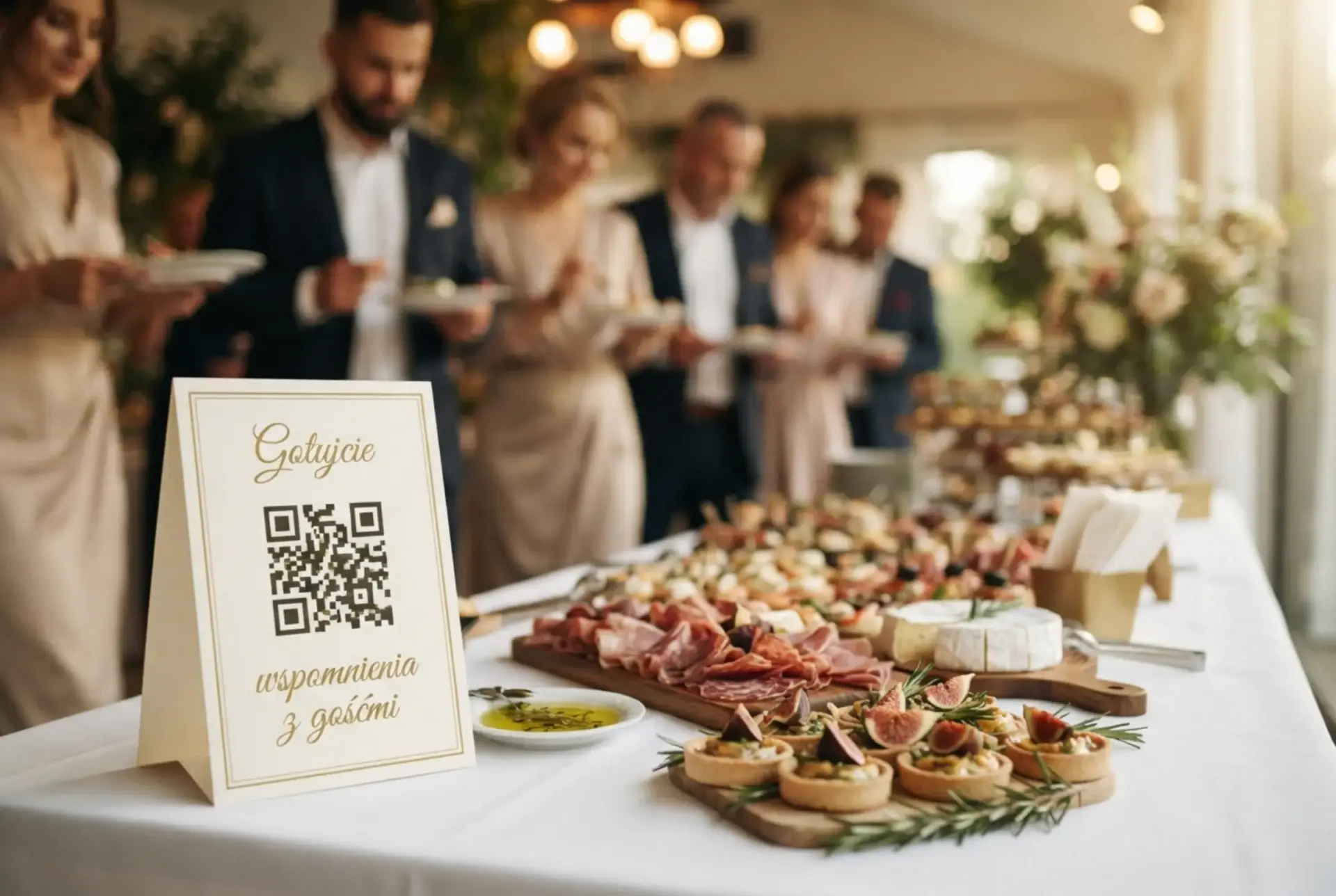
- Non-table spots — reception, bar, bathroom entrance, photo corner. People scan when they're standing and waiting.
The FotoClick designer lets you pick a font and colour so the placard matches the invitations, wedding theme, or company brand. It's not full visual identity (you won't drop a company logo into the designer), but enough to make the placard look like a planned part of the event rather than a scrap out of Word.
Use case — Katie's 30th
Katie is planning her 30th at a restaurant on the riverside. 45 guests: family, high-school friends, work crew, her boyfriend with his uni mates. Three worlds that don't know each other, so a Messenger group is out — nobody will add anyone.
A week before the party, Katie creates an event in FotoClick. She enters "Katie's 30 | July 15th", sets the PIN "3007" (her birthday), downloads placards in sage with the copy "Drop a shot — we'll laugh about it tomorrow". She prints 12 pieces in A5 and puts two on each of the six tables.
The party starts at 7. By 8:30 the gallery has 40 photos. By 10 — 180. At midnight, Katie turns on Live Show on the TV by the bar, photos rolling every 6 seconds. A waitress comes over, asks what it is, uploads her own shot "from behind the bar". By 2am the gallery has 480 photos — from the guest who arrived late, from her parents who left at 11, from the friend who mostly photographed Katie's boyfriend (as always).
In the morning, Katie downloads the ZIP. She sends the gallery link to the guests who asked for it. She hides five photos (one blurry, one showing Chris's bruise from the fall, three of her cousin's failed selfies). The rest stays. A week later she orders a photo book with the 30 best shots as a gift to herself.
The same event on Messenger would end with 40 photos, 25 of them from one person.
Variants — one gallery, many occasions
What we showed with Katie's 30th works exactly the same on other event types:
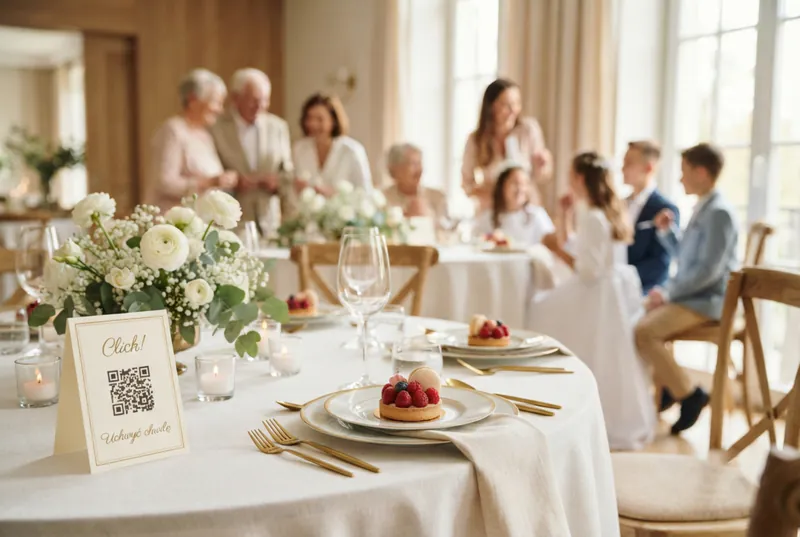
- Wedding — placards on 12-15 tables plus one by the guest book. Live Show during dinner. More in our guide on how to collect wedding guest photos.
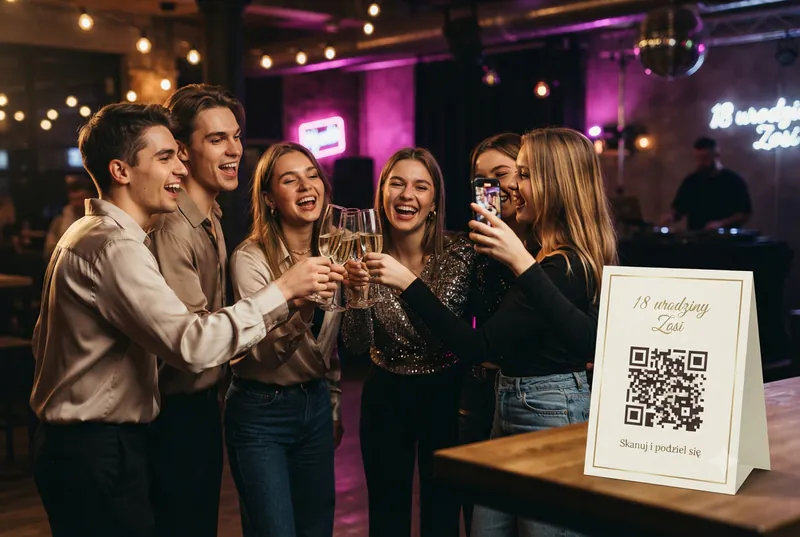
- 18th birthday — placards on the tables, one by the cake, one in the photo corner. Dark theme suits the club vibe.
- Christening / first birthday / communion — one placard on the table, PIN optional. Parents collect shots from close family in one gallery to build an album for the child.
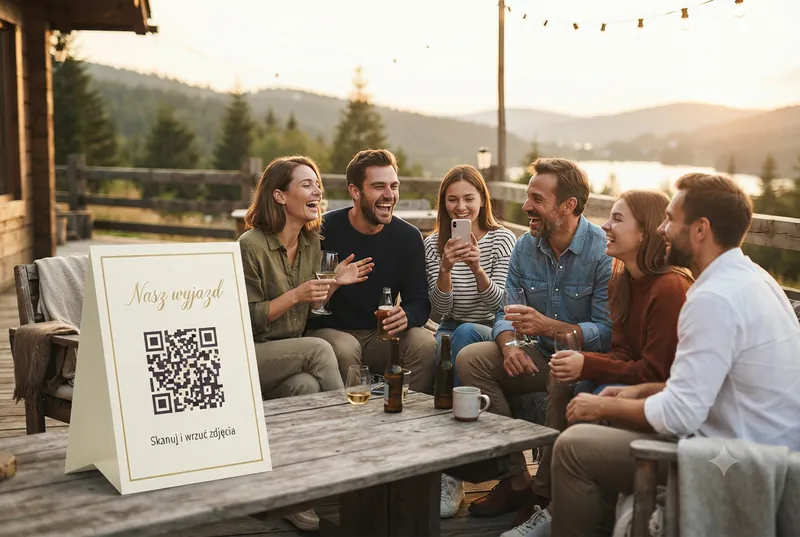
- Corporate offsite — placards in the meeting space plus in the hotel lobby if it's a stay-over. PIN on, so the gallery stays internal. Perfect for 30-100 person events.
- Hen / stag night — one placard is enough, everyone knows each other. Live Show is skippable — it's about the keepsakes, not the room show.
- Conference / company gala — placards at reception plus in the networking area. A great complement to the official photographer: they capture the event, guests capture the corridors.
One account, one logic, six different parties in the calendar. You don't have to learn a new app when you go from a wedding to your brother's birthday.
Frequently asked questions
Do guests have to install anything to upload a photo? No. They scan the code with their phone camera, a page opens in the browser, they pick photos from their gallery, they send. You can optionally save the gallery as an app, but that's one tap and it's not required.
What if the venue has weak internet? Photos go into an upload queue on the guest's phone. When the connection comes back — in the parking lot, on the way home — they upload themselves in the background. The guest doesn't have to remember anything.
What quality are the photos? Full original resolution. Suitable for a photo book, large-format print, Instagram without compression. You download the ZIP and the files inside look exactly like they came off the guest's phone.
Can I remove photos that shouldn't be public? Yes. In the organizer panel you hide individual shots — guests won't see them, but they stay in your archive. You can also delete them completely if you prefer.
How long does setup take? A basic event — name, date, placard — 30-60 seconds. With the placards polished, PIN set, and theme picked — 5-10 minutes. Printing the placards takes longer than the online setup.
Will one account handle a wedding, an 18th, and a corporate offsite? Yes. It's exactly the same workflow. You create another event under the same account and configure it from scratch. The QR code is different for each event, so photos never mix.
What next
If you're planning a specific event, sort three things in this order: create an account in FotoClick, design a placard in the builder, print with a week to spare. Setting them out and the rest will take care of itself.
If you want to understand the specifics of designing a good QR code for a wedding or another event — that's where we cover format, contrast, and placement on the placard. And if you're weighing up the available tools and which type to pick, take a look at our guide to choosing an event photo app.
A shared gallery isn't just organizer convenience. It's something you come back to a year later, five years later, to see who was there, how they looked, what you were laughing about. Those moments are too good to leave on someone else's phone.
Create an event in 30 seconds
Guests scan a QR code and upload photos. No app, no account needed.