
Corporate
Corporate event photos — how to collect them from attendees and use them in company communication
11 min read
Published 15 July 2026Updated 31 October 2026
TL;DR: Put QR-code placards on the tables at your corporate event. Attendees scan with their phones and drop photos into a shared gallery without installing an app or creating an account. After the event you have one folder ready for LinkedIn, for the report and for employer branding. We built FotoClick exactly for companies that run several events a year.
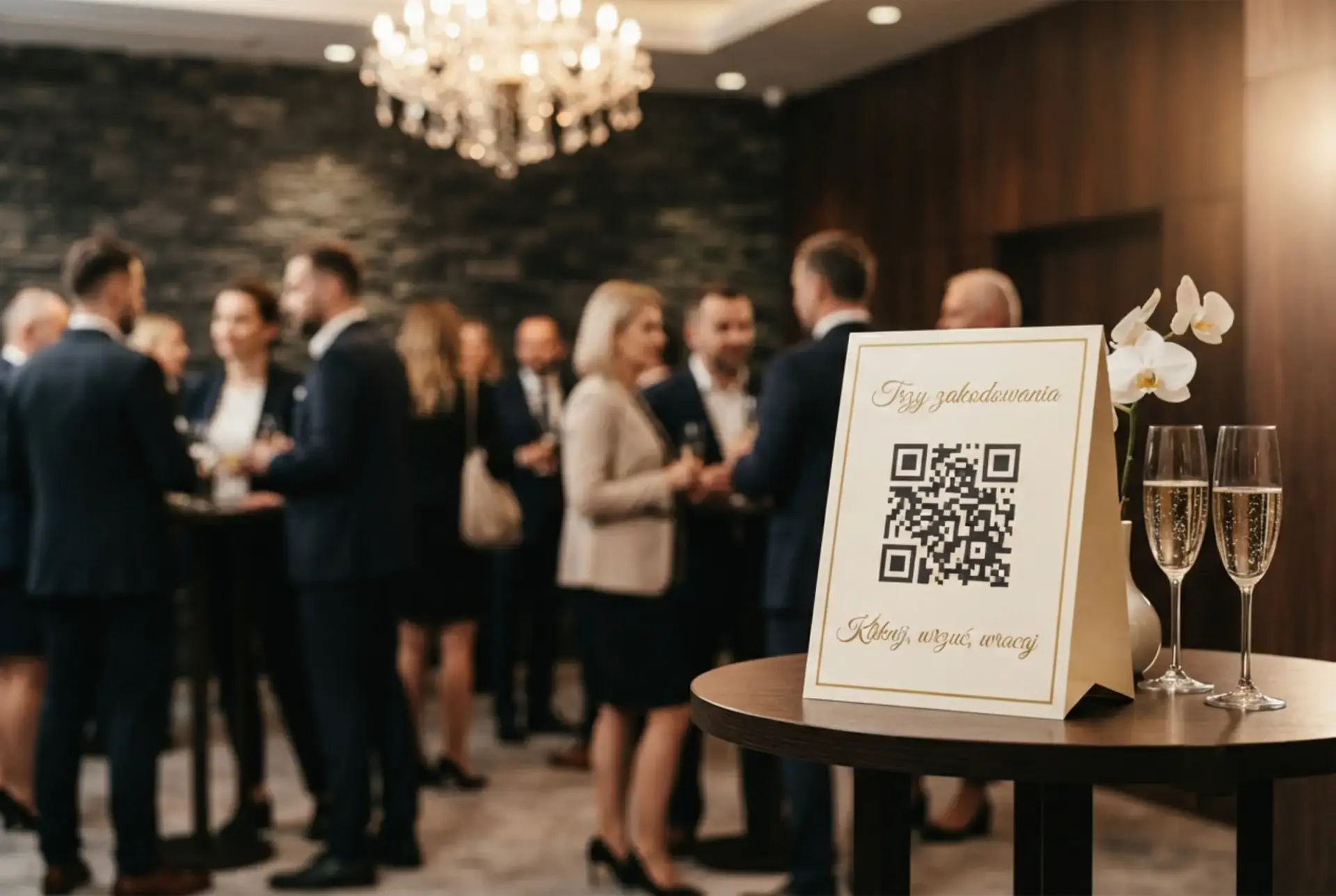
How do you collect corporate event photos from attendees? Create an event in FotoClick, print QR-code placards and place them on the reception desks and in the networking zones — attendees scan, drop the photos, done. Below we walk through how to run this on a conference, a team offsite and an anniversary gala — and how to use the photos afterwards in company communication.
Why asking for photos after the event never works
You know the pattern. Monday morning after a Friday team offsite. You post on Slack: "Hey, drop your event photos into the shared drive." By Wednesday five people have replied. Three send WeTransfer links that expire in a week. Two upload to a Google Drive folder with no captions. One email from the sales director: "No time, grab whatever you want from my Instagram." Friday — you're finishing the event report and picking from whatever you managed to scrape together. Marketing asks for LinkedIn content for next week. You have nothing fresh.
This model breaks for three reasons. First, every attendee has a different tool — some shoot on iPhone, some on Android, some on a compact camera. Synchronising all that without a shared destination is impossible. Second, asking for photos after the event requires an action, and a post-event action always loses to current work. Third, the corporate photographer (if there was one) delivers finished photos in a week or two — and you need material on Monday to close out communication.
The solution has to work during the event, not after. And it has to be simple enough that an attendee mid-conversation about sales strategy uploads a photo in fifteen seconds without stopping to think about an account password.
A shared gallery with a QR code — how it works
The idea is simple. Instead of asking attendees to send photos after the event, you give them a place to drop them during it. QR code on a placard, phone scan, tap "select photos", done. No sign-up, no app install, no logging in with a work email.
In FotoClick it looks like this:
- You (event manager / HR / marketing) create an event on fotoclick.pl. You get a link, a QR code and a unique event number.
- You print the placards from the designer — five graphic templates to choose from (classic, dark, sage, burgundy, minimalist), one A4 page fits from 1 up to 9 codes.
- You place the placards on reception desks, in networking zones, next to the stage and by the food trucks. You also set one A4 placard by the side of the stage — visible from the room.
- The attendee scans the QR with the default camera app, a page opens in the browser, they enter the PIN (if the event is closed) and upload their photos.
- You see it live — everything that gets dropped shows up in the organiser panel, where you can moderate, hide bad shots and run a slideshow on the projector.
The key thing: the attendee doesn't create an account. No email. No app. No password. They just open a browser page and drop photos like sending them to WhatsApp from the phone gallery. For a corporate event with people of different ages and different levels of tech confidence, that's the difference between "5% upload" and "60% upload".
Step by step — how to prep a corporate event
Step 1 — Create the event 3–5 days before
Head to FotoClick and create a new event. Enter a name (e.g. "Sales Conference 2026", "Q3 Offsite — Zakopane", "20th Anniversary Gala"), a date and a short description. Pick a theme (light or dark — match it to the company brand or the venue vibe). Generate a guest PIN — a 4-digit code that attendees enter before seeing the gallery. The PIN keeps the event safe from anyone outside the organisation.
Step 2 — Print the placards
In the placard designer pick a template (Sage is neutral for corporate, Dark fits evening galas, Simple works for conferences). Set the text — good phrasing for a corporate event: "Scan and drop your event photos", "Your shots go back to the company", "Share your view". Printing on rigid stock (250 gsm) or slotting into clear plexi stands makes a difference — the placard looks like part of the event, not a print-out from the HR office.
Step 3 — Place the codes in the right spots
- Reception / registration desk — the attendee's first contact with the event, the best moment to introduce the mechanic.
- Coffee and lunch tables — people pull out phones during the break, that's when they scan most often.
- Networking and chill-out zone — this is where the most natural photos are made.
- Sides of the stage and food trucks — group moments, talks, award reveals.
- Photo booth / hot dog stand / drink bar — places where people are already standing with phones in hand.
Don't put codes near the restrooms or in the parking lot — they only work where the attendee has a moment to focus.
Step 4 — Announce the mechanic from the stage
Thirty seconds from the host before the first coffee break does more than thirty placards. "Everyone, there are QR codes on the tables — scan them with your phone and upload your event photos. Everything lands in one gallery, which we'll email you after the event." That sentence, plus one slide with the code on the host's screen, multiplies conversion.
Step 5 — Run Live Show on the projector during dinner
If the event has a dinner segment — turn on Live Show on the projector or TV. Photos dropped by attendees appear on the big screen at a pace of 5–10 seconds each. It does two things: first, everyone sees their photo on screen (a strong motivator to drop more), and second, the event gets visual energy that usually drops off after 10 PM. More on this in the article about a slideshow at your event.
Step 6 — After the event: download the ZIP and hand it to marketing
The next morning you open the panel, click "download all" and get a ZIP with full-quality photos. You pass the folder link to marketing and HR. The material feeds LinkedIn posts, the event report, the intranet, the employer-brand career page.
What you actually get — for three event types
Conference
For a tech or sales conference the priority is material for external communication. Attendees shoot the speakers, the data slides, close-ups of the stage branding, networking at partner booths. The uploaded photos give you: LinkedIn posts on the company page (material for a multi-week publishing calendar), material for a case study, visual documentation for partners and sponsors, "we were there" proof for clients who couldn't make it.
Company offsite
An offsite is internal communication and employer branding. Photos from go-karts, the dinner, the team-building activity, the evening party — that's material for the intranet, the company newsletter, the careers page ("see what it's like here"). Attendees are much more willing to drop candid shots at an offsite than at a conference, because there's no "this needs to look professional" pressure. The result: you get natural, human material that an agency photographer never catches.
Anniversary gala / VIP event
A gala is company history captured in faces. The board, long-term clients, strategic partners, award recipients. A photographer will handle the official portraits, but attendees are the ones who capture the tableside conversations, the toasts, the moments of recognition seen from the room. That material later feeds PR assets, the annual report, the presentation for the next milestone.
What else FotoClick brings to a corporate event
- Push notifications to attendees — you can broadcast messages like "CEO keynote in 15 minutes on the main stage" or "Afterparty at the rooftop bar". The attendee gets a phone notification without installing any company app.
- Announcements feed — a history of broadcasts the attendee can come back to at any time. Great for agenda, logistics info, or the link to post-event material.
- Photo moderation — if someone drops something inappropriate (rare at corporate events, but it happens), you hide it with one click from the organiser panel.
- Guest PIN — a corporate event is usually a closed setting; the PIN means only people who were physically on site (and saw the code plus PIN) get into the gallery.
- One account, many events — if you run several events a year (offsite + conference + gala + kick-off), you manage all of them from the same panel. No new account per event.
Nordfield — how they ran it on a sales conference
Nordfield, a B2B SaaS company, was running its annual sales conference for 180 people. Event manager Anna had two goals: deliver a visual report to the board by Wednesday, and hand marketing enough material for a four-week LinkedIn publishing calendar.
The classic path: agency photographer, a week of editing, material only by Friday of the following week, marketing gets 200 curated shots. Instead, Anna spun up FotoClick. Four days before the conference she created the event, printed a full set of placards in the classic format (Sage — it matched the brand book), placed two on every networking table, one on every coffee table, plus a large A4 by the stage.
During the opening, the Nordfield CEO said one sentence from the stage: "You'll see QR codes on the tables — scan them and drop your photos, everything lands in the shared gallery we'll email you." The result: most attendees scanned the code, and hundreds of photos were uploaded over the two conference days.
Anna had the folder ready on Tuesday morning. The board got the report with photos from talks and networking on Wednesday. For weeks afterwards marketing had material for LinkedIn posts — authentic attendee shots instead of only staged agency-photographer material.
Bonus: 12 attendees asked Anna for access to the gallery after the event so they could download the photos they were in. For HR that was a signal that the event landed well — people wanted a keepsake.
Frequently asked questions
Do attendees have to create an account? No. The attendee scans the QR code, enters the PIN (if the event is closed) and drops photos. Zero sign-up, zero email, zero password. For a corporate event with people from 25 to 60+, that zero-friction barrier is decisive.
What about data protection and GDPR? Photos land in a gallery that only attendees with the PIN can reach (or only the organiser, if you set it that way). They're not publicly indexed. You can hide any specific photo from the panel at any time, or download everything and close the event. As a standard practice it's worth informing attendees in the event agenda that photos will be collected in a shared company gallery.
Does Live Show work in a big room with a projector? Yes. Live Show is a slideshow you launch in the browser on a laptop connected to a projector, or straight on a TV with a browser. You set the pace (5–10 sec per photo), the order (newest first works great at events — the freshest uploads hit the screen instantly) and a welcome slide with the event name.
How does this scale to several events a year? One account handles all your company events. You can have a conference open in Warsaw, an offsite in Zakopane and a gala in Kraków running in parallel — each event has its own code, PIN and gallery. You switch between them in the panel with a single click.
What if someone shoots on a camera, not a phone? The attendee can upload camera photos after the event through the same link — from a laptop, once the SD card is copied. The gallery accepts photos both during and after the event, until you close it.
How many placards do I need for a 150-person event? Rule of thumb: one placard per 8–10 attendees in the key spots (reception, coffee tables, networking, stage). For 150 people that's usually 15 or so placards plus one large A4 by the stage. More on smart placement in the guide to QR codes at events.
What's next
If you're running a conference, an offsite or a company gala in the coming weeks — start by creating the event in FotoClick and generating the first draft of placards. The designer takes 10 minutes, printing 2 hours, PIN and theme setup 5 minutes. The rest happens during the event itself.
Related reads:
- How to collect wedding guest photos — the QR mechanic explained from the ground up, useful for offsites too
- Slideshow at an event — Live Show — how to run the slideshow on a projector during a gala dinner
- Shared event gallery — a comparison of ways to collect photos from attendees
One FotoClick account handles your daughter's wedding, your son's 18th birthday, your team's offsite and the company's anniversary gala next quarter. Same mechanic, different contexts, one panel.
Create an event in 30 seconds
Guests scan a QR code and upload photos. No app, no account needed.